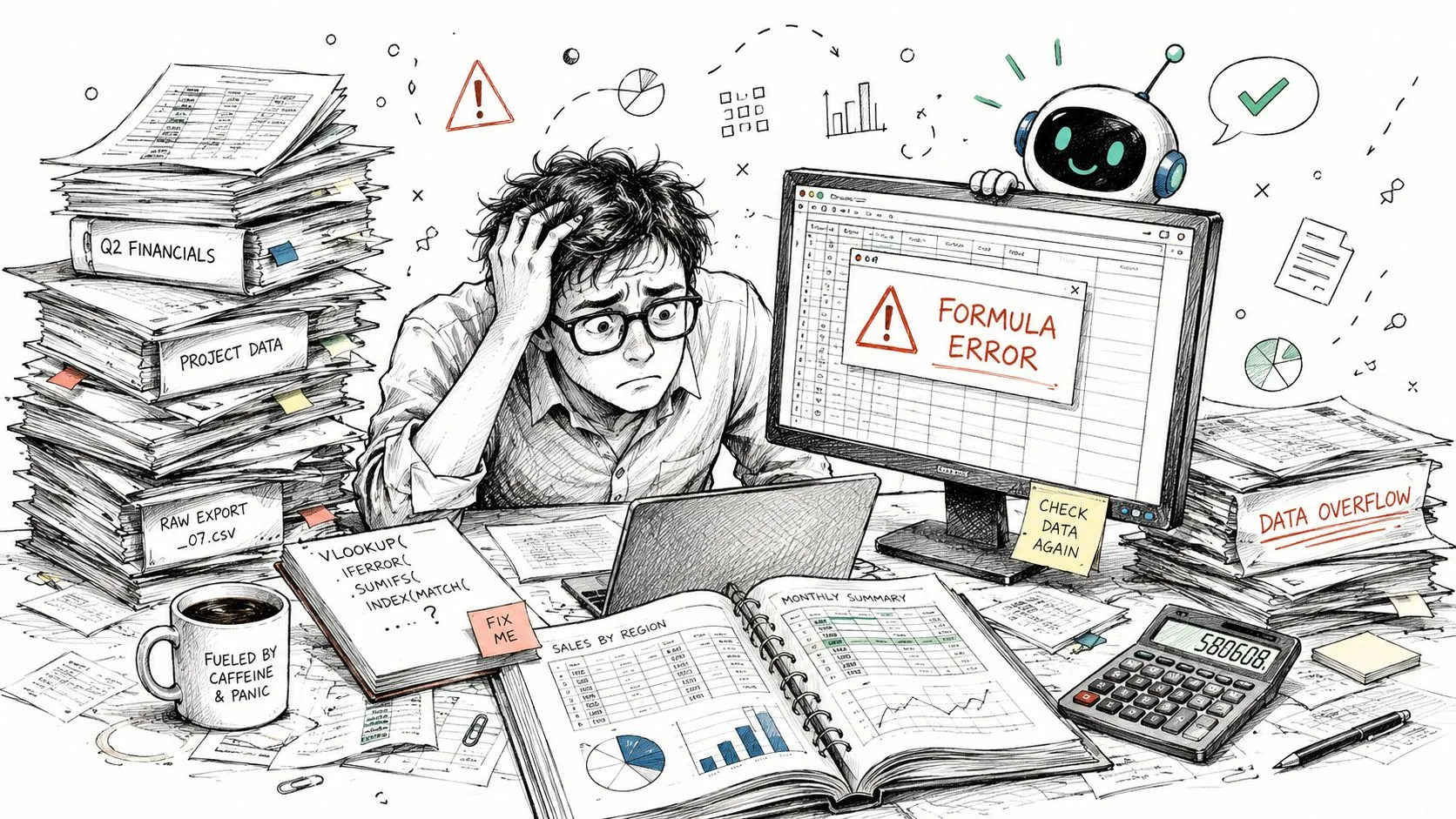
You open a workbook to make one quick update. Two hours later, you're still fixing broken formulas, hunting duplicate rows, and wondering whether that summary tab is pulling from the right range. The hard part usually isn't the math. It's the cleanup, the interpretation, and the quiet fear that one wrong reference will roll into a report someone else treats as fact.
That's why AI for spreadsheets is getting real attention from people who live in Excel and Google Sheets all day. The appeal isn't flashy. It's practical. Less manual wrangling. Faster first drafts. Better ways to turn raw tables into something usable. The central question isn't whether AI can write a formula anymore. It's whether you can trust it when the sheet feeds a forecast, a client update, or a finance deck.
Beyond VLOOKUP Your New Spreadsheet Assistant
Most spreadsheet pain looks ordinary at first. A CSV export with inconsistent dates. A sales report with product names spelled three different ways. A budget model that works until someone inserts a column and breaks a key formula three tabs away. Then the cleanup starts, and the cleanup is where time disappears.
That's where AI for spreadsheets is useful. Not as magic, and not as a replacement for spreadsheet judgment. It works best as a working assistant that handles repetitive first-pass tasks fast, then gives you something to refine.
A lot of users are already there. A 2026 Acuity Training study reported that 63% of advanced Excel users had used at least one AI tool with Excel, while 41% of all Excel users said they knew they could use AI in Excel. Among those aware, 23% had already tried ChatGPT, according to Acuity Training's Excel AI statistics.
That lines up with what's happening in real workflows. People aren't only asking AI to write a nested formula. They're asking it to standardize labels, explain why a formula fails, summarize a tab for an executive reader, and turn unstructured notes into something that belongs in a report.
AI for spreadsheets saves the most time on tasks that feel too small to automate and too annoying to do by hand.
If you're still in the “I know spreadsheets, but AI feels like another thing to learn” phase, a practical starting point is this AI guide for Excel users. The fastest wins usually come from improving jobs you already do every week, not inventing new workflows from scratch.
Understanding the Core AI Capabilities
Business teams trust spreadsheet AI faster when they know what it is good at, where it fails, and how to check its work. In practice, these tools are strongest as a drafting and transformation layer inside an existing spreadsheet process. They speed up repetitive work, but they do not remove the need for review, especially in reports that go to finance leaders, clients, or auditors.
The useful framing is operational, not conversational. AI can generate formulas, clean columns, summarize patterns, rewrite text fields, and chain routine steps together. It can also apply the wrong rule to a messy dataset, misread a header, or produce a plausible summary that skips an exception your report depends on.
A Better Expectation for Professional Use
This expectation matters because it changes how you deploy the tool. Reliable use starts with a clear brief, sample rows, and a validation step before anything reaches a decision-maker. Teams that skip those controls usually get impressed in week one, then frustrated in week three when an output looks polished but is wrong in a way that is hard to spot.
Microsoft helped push this into everyday spreadsheet work with Copilot in Excel. On its AI for Excel page, Microsoft describes plain-English help for formulas, charts, summaries, and analysis across common data types. Excel remains central to finance work, and Vena Solutions makes that point directly in its State of Strategic Finance 2025 report, which is the underlying source for Microsoft's reference to finance teams still relying heavily on Excel.
For recurring spreadsheet jobs, some teams also create personalized AI specialists for tasks like categorization, workbook QA, or first-draft report commentary. That adds consistency when the same process runs every week and the prompt needs to produce the same kind of output each time.
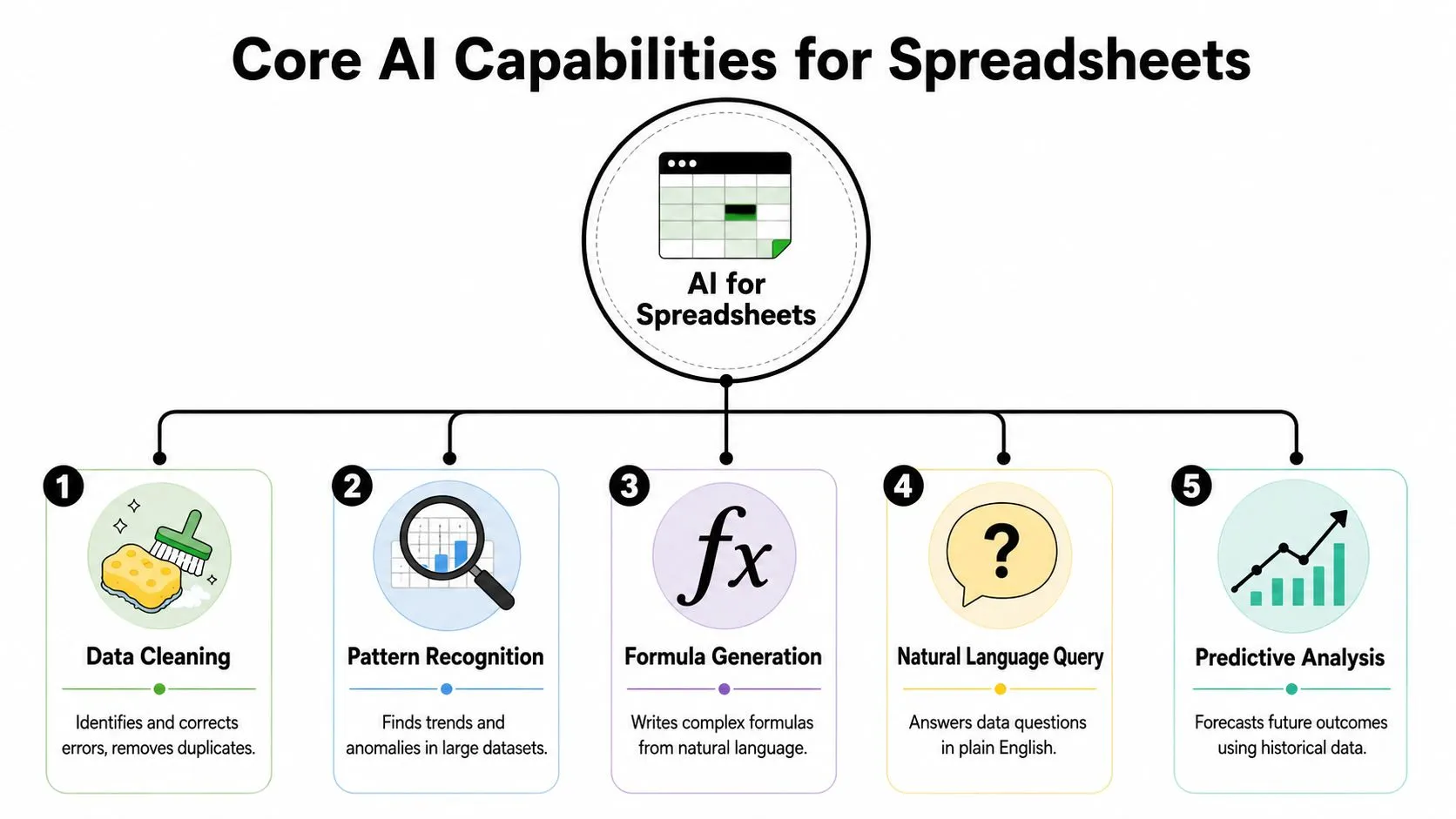
The Five Capabilities That Matter
Here is where spreadsheet AI usually delivers real value.
-
Natural-language formula generation
You describe the rule in business terms, and the tool proposes a formula or rewrites a broken one. This saves time when the logic is clear but the syntax is not. It still needs testing against edge cases, especially with dates, array formulas, nested conditions, and mixed data types. -
Intelligent data cleaning
AI handles repetitive cleanup well: duplicate removal, label normalization, missing-field checks, format standardization, and simple categorization. This is often the first place professionals get time back because cleanup work is tedious, frequent, and easy to verify with spot checks. -
Automated analysis and insight drafting
Good tools can summarize changes, highlight anomalies, suggest pivots, and draft commentary from the sheet. The gain is speed, not certainty. Analysts should still trace any claimed trend back to the underlying rows before using it in a business-critical report. -
Contextual text rewriting inside the sheet
Many spreadsheet workflows include messy text columns such as notes, support tickets, CRM comments, product descriptions, or lead-source details. AI is useful here because standard spreadsheet functions are weak at interpreting free text. Classification and summarization can work well if you define the categories clearly. -
Workflow automation across steps The highest return usually comes from combining tasks. Clean the export. Classify rows. Flag exceptions. Draft a summary. Write outputs back into the workbook. In this context, AI starts fitting into a professional workflow instead of acting like a one-off formula helper.
A practical rule holds up across all five capabilities. Use AI to produce the first pass, then verify the parts that affect money, compliance, or executive reporting. That is the line between a handy spreadsheet shortcut and a process you can trust.
How Professionals Use AI in Spreadsheets Today
The most convincing use cases aren't abstract. They show up in ordinary jobs where someone has to force messy data into a decision-ready format by the end of the day.
Marketing Teams Clean and Segment Faster
A marketer exports webinar leads. The sheet includes job titles written ten different ways, inconsistent company names, mixed capitalization, and a notes column full of free text from signup forms. The manual version of this task is tedious and slow.
Modern spreadsheet AI can convert plain-language prompts into formulas and logic, build pivot tables and charts, classify rows, surface patterns, detect outliers, and run statistical summaries directly in the sheet, as described in Sparkco's overview of AI in spreadsheet software. In practice, that means the marketer can ask the tool to standardize title casing, bucket roles into segments like decision-maker or practitioner, extract company domains from email addresses, and draft campaign angles from the notes field.
The best part isn't the formula generation. It's the speed of going from ugly export to usable targeting sheet.
Financial Analysts Use AI as a Drafting Layer
For analysts, the gain is usually in preparation and interpretation, not final sign-off. A monthly performance sheet arrives with multiple tabs, mixed labeling, and comments added by different stakeholders. AI can draft a variance summary, suggest formulas for exception flags, and identify rows that deserve review.
That's useful because it compresses the first pass. The analyst doesn't start from a blank page. They start with a worksheet that already has a preliminary summary, a first set of flagged anomalies, and a few candidate visuals.
What doesn't work well is treating the result like a finished analytical product. AI is strong at spotting likely issues. It's weaker at knowing which issue matters to the business context and which one is just noise.
Project Managers Turn Messy Updates Into Status Reports
Project status often lives in ugly spreadsheets. One team writes complete updates, another team writes fragments, and a third team dumps pasted text from Slack or email threads into cells. AI helps by classifying update themes, extracting blockers, and rewriting scattered text into concise status lines.
A simple workflow can look like this:
- Collect updates in one tab with owner, project, raw status text, and due date.
- Ask AI to rewrite each update into a short, consistent summary.
- Flag risk language such as blocked, delayed, waiting, or dependent.
- Group repeated issues so the manager can see whether several teams are hitting the same bottleneck.
For people building larger process chains around those steps, MakeAutomation's AI workflow guide is a helpful reference for turning one-off spreadsheet prompts into repeatable automations.
If the job requires consistency across dozens or hundreds of rows, AI is usually more valuable as a classifier and summarizer than as a formula writer.
Native vs Add-On AI Spreadsheet Tools
Once you start using AI for spreadsheets regularly, the tool choice matters. There isn't one category winner. The right option depends on where your data lives, how sensitive it is, and whether your biggest problem is convenience or precision.
Where Native Tools Fit Best
Native tools are built into the spreadsheet environment itself. Think Excel with Copilot, or similar assistant layers that sit directly in the workbook experience. The upside is obvious. Less friction, cleaner permissions, and easier adoption for teams already standardized on a suite.
They also tend to fit enterprise environments better. If your company already lives in Microsoft 365 or Google Workspace, native options are easier to justify because users don't need a separate interface or extra behavior change. For teams that want structured training around spreadsheet prompting and sheet-integrated AI logic, this Google Sheets custom GPT functions course is a practical example of how people extend spreadsheet workflows without abandoning the sheet itself.
Native tools are usually the easiest starting point when:
- Your team wants low-friction rollout and prefers built-in tools over extra vendors.
- Security review is strict and adding third-party software is slow.
- The main jobs are common tasks like cleaning, charting, summarizing, and formula help.
Where Add-Ons Usually Win
Add-ons and specialist tools often go deeper in one area. Some are better at cell-level AI functions. Others focus on large-scale categorization, sheet-driven prompts, or more controllable workflows. They can be a better fit if your work is repetitive and specific, such as tagging support tickets, rewriting product data, or running recurring sheet-based classifications.
The trade-off is fragmentation. You may get stronger niche capability, but you also take on another tool, another permission model, and another place where output quality can vary. If you manage operations across multiple clients or internal teams, broader roundups like this guide to AI tools for agencies can help you compare spreadsheet tools in the wider automation stack.
| Tool Type | Integration | Key Strength | Best For | Typical Pricing |
|---|---|---|---|---|
| Native spreadsheet AI | Built into Excel or Sheets environment | Convenience, ecosystem fit, easier adoption | Teams already standardized on a productivity suite | Usually bundled with broader platform plans or add-on licenses |
| Add-on AI tools | Extension, add-in, or external connector | Specialized functions and workflow flexibility | Users with narrow, recurring spreadsheet jobs | Varies by vendor and usage model |
A simple selection rule works well. Start native if your main goal is adoption. Start with a specialist if your main goal is solving one stubborn workflow better than the built-in option can.
Mini-Workflows and Prompt Templates to Start
The easiest way to evaluate AI for spreadsheets is to run it on work you already hate doing. Don't start with forecasting or board reporting. Start with cleanup and summaries. Those jobs are repetitive enough to benefit from AI and visible enough that you can catch mistakes fast.
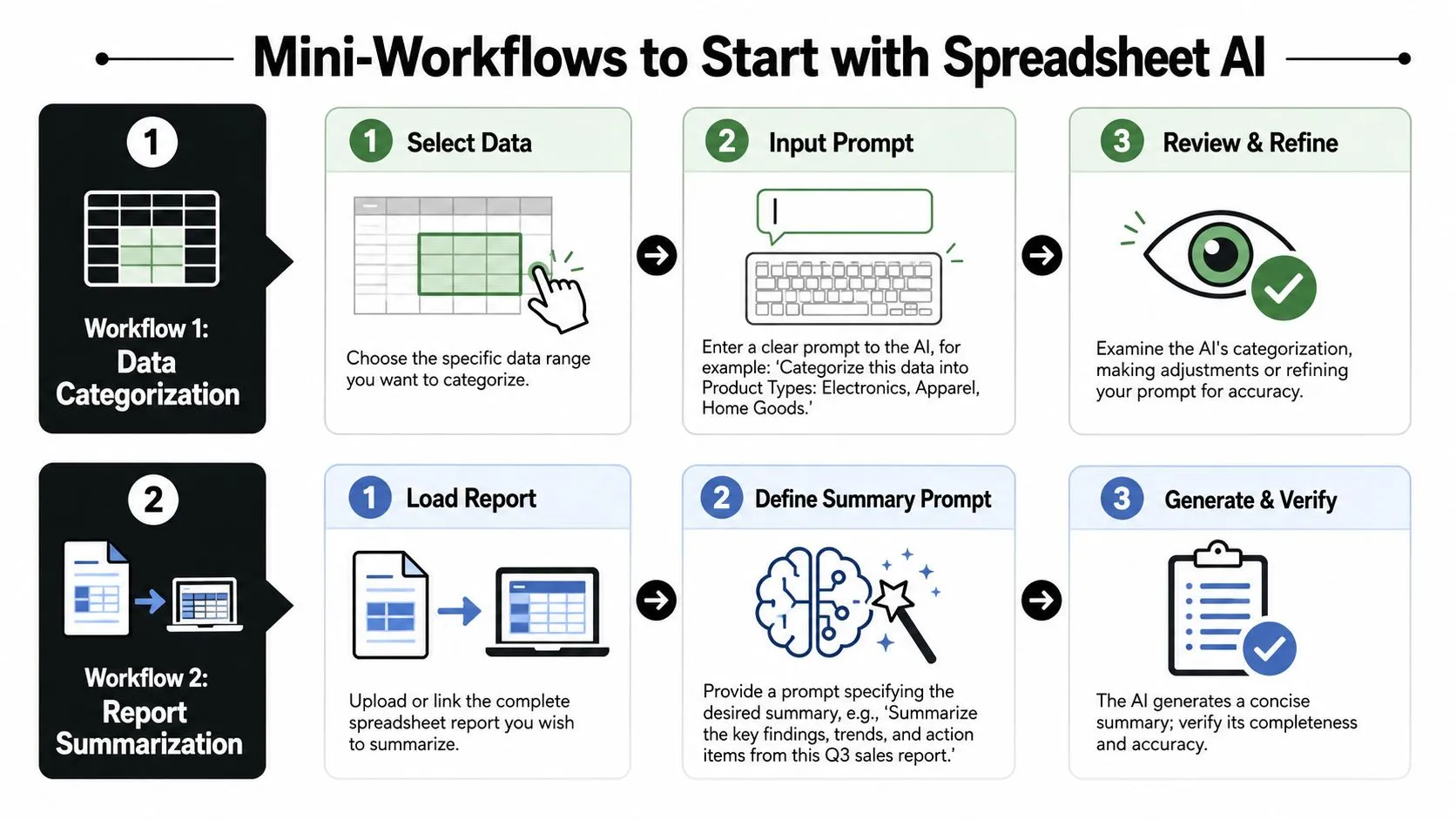
Workflow One Clean a Messy Customer List
Use this when you have a list with inconsistent names, titles, or free-text notes.
- Duplicate the raw sheet so you never overwrite the original.
- Pick one narrow task first, such as standardizing company names.
- Run AI on a sample range before applying it broadly.
- Create a review column beside the AI output.
- Filter for blanks, odd edge cases, and obvious misclassifications.
Prompt templates:
Standardize the company names in this column. Return a cleaned version that preserves the original business name and removes inconsistent capitalization or legal suffix variation when appropriate.
Classify each job title into one of these groups: executive, manager, individual contributor, consultant, student, other. If uncertain, return other.
Read the notes field and extract the main product interest in a short label of three words or fewer.
A useful habit is to separate AI output from source data. Don't let the tool overwrite your only version.
If you want guided examples for plain-language spreadsheet building, this ChatGPT for Excel modeling course shows the style of prompt-to-sheet workflow that works well for non-technical users.
Workflow Two Create a Weekly Sales Summary
This works well for sales operations, founders, and managers who get a raw export every week and need a usable update quickly.
Start by asking AI to identify the structure of the sheet. Which columns contain date, owner, revenue, stage, region, and notes? Once that context is clear, ask it to draft summary language and propose a compact table for review.
Prompt templates:
Summarize this weekly sales sheet by rep and region. Highlight major changes, unusual values, and rows that appear incomplete or inconsistent.
Create a draft management summary from this data using plain business language. Focus on trend changes, risks, and follow-up items that need review.
Later in the process, a walkthrough can help. This video shows the kind of practical prompting flow that makes spreadsheet AI easier to adopt:
Use the output as a draft, then inspect it in three passes:
- Check grouping logic to make sure the right rows landed in the right summary bucket.
- Inspect exceptions manually because AI often misses why an outlier matters.
- Rewrite the final narrative for audience fit. Executive summaries need different language than internal ops notes.
Clean first, summarize second, automate third. Most spreadsheet AI failures happen when people skip the cleanup step.
Staying Secure and Accurate with Spreadsheet AI
Professional spreadsheet work fails in quiet ways. A formula references the wrong range. A category model puts a row in the wrong bucket. A summary sentence sounds plausible enough that nobody checks the cells underneath it. AI can accelerate all of those mistakes if you use it carelessly.
Why Verification Matters More Than Features
Reliability varies by tool, and that's the point many feature-list articles skip. Independent benchmarking showed that performance can differ sharply across spreadsheet AI tools. In one test, Microsoft's Copilot was the worst performer overall while a specialist tool performed best on the tested scenarios, as discussed in this benchmark-focused review on YouTube. The takeaway isn't that one tool always wins. It's that output quality needs testing in your actual workflow.
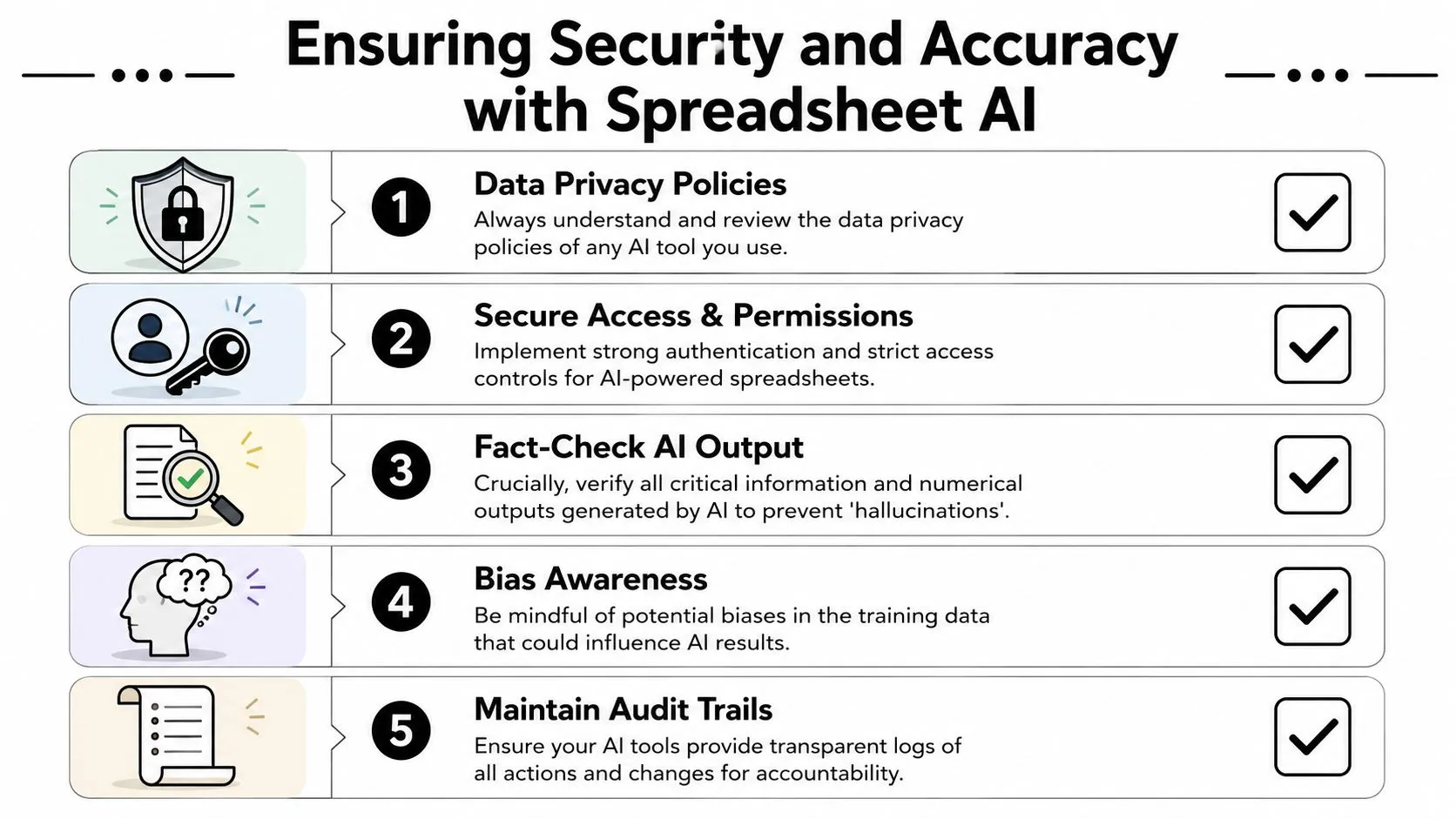
For business-critical reports, AI should be treated as a drafting assistant. It can help prepare, suggest, classify, summarize, and flag. It shouldn't be the final authority on figures that go to clients, leadership, or finance close processes.
A Practical Trust but Verify Checklist
Use this checklist before you rely on AI-generated spreadsheet output:
- Protect sensitive data by understanding what data the tool can access and what your company allows you to upload or process.
- Audit generated formulas when the logic is complex, especially if the result drives a downstream dashboard or report.
- Review a sample by hand before applying the output across a full sheet.
- Use narrow prompts instead of broad ones. “Classify these support tickets into billing, bug, feature request, or account issue” works better than “analyze this.”
- Keep an audit trail by storing raw data, AI output, and final reviewed output in separate columns or tabs.
Trust AI for speed. Trust your review process for accuracy.
The teams getting the best results aren't the teams with the fanciest prompts. They're the ones that build simple verification habits into ordinary spreadsheet work.
Making AI Your Spreadsheet Superpower
AI for spreadsheets is most valuable when it removes drudgery without removing judgment. That's the balance. Let it clean, classify, summarize, and draft. Keep the final call for yourself when the workbook feeds a real decision.
The practical path is straightforward. Start with one repetitive task. Use clear prompts. Compare the output against known-good rows. Then decide whether the tool fits your workflow, your data sensitivity, and your tolerance for review. If it saves time only when heavily supervised, that still might be worth it. If it creates too much cleanup, move on.
The bigger shift is this. Spreadsheets used to demand that you translate every business question into manual formulas, pivots, and cleanup steps yourself. Now AI can take the first pass. That changes who can work effectively in spreadsheets and how fast a non-technical professional can get to insight.
Pick one workflow from this article and test it this week. A messy lead sheet, a sales export, a project status tracker. Don't aim for full automation. Aim for one task you can finish faster and verify confidently.
If you want structured practice after that first test, AI Academy has practical lessons for working professionals on spreadsheet prompting, automation, and tool-specific workflows, including short tutorials that fit around real work instead of long theory-heavy courses.