Stop Drowning in Spreadsheets, Start Automating with AI
You know the feeling. A CSV lands in your inbox, the column names are inconsistent, half the dates are broken, and someone wants a clean report before lunch. Then the follow-up request arrives. Add sentiment tags, summarize the responses, build a chart, and fix the formulas that broke when the data refresh ran.
That's where good AI tools for Google Sheets stop being a novelty and start being part of the job.
The difference in 2026 isn't just that AI exists inside Sheets. It's that you now have two very different categories of help. Native tools like Gemini are good for guided analysis, formula help, and quick exploration. Bulk add-ons are better when you need row-by-row automation across large datasets. If you pick the wrong category, you'll waste time prompting one cell at a time.
This guide is organized by use case first, not feature checklist. If you need reporting help, data cleaning, NLP, or large-scale enrichment, you'll see which tool fits the actual job. If you're also trying to improve your broader Sheets workflow, this Icypeas Google Sheets guide is a useful companion.
1. Courses - Build Practical Google Sheets Automation Using Gemini
The actual need isn't for another broad AI course. It's for a fast path from “I know Sheets” to “I can automate work that used to take me half a day.” That's why Build Practical Google Sheets Automation Using Gemini stands out.
It's a micro-course built for marketers, analysts, managers, and other non-technical professionals who want practical spreadsheet automation without turning into Apps Script developers. The value isn't abstract theory. It's short lessons, reusable prompts, and examples that mirror real work like cleaning exports, generating formulas, creating recurring reports, and connecting Sheets to broader workflows.
Why this is the best starting point for non-technical teams
Native Gemini inside Google Sheets has changed the baseline. Late 2025 into 2026, Google made the =AI() function and Gemini sidebar available to standard Workspace users at no additional cost, which pushed AI in Sheets from experiment to everyday workflow for many teams, as described in Coefficient's review of AI tools for Google Sheets. That shift created a new problem. The tools are easier to access, but most users still don't know how to structure prompts, build repeatable workflows, or decide when Gemini is enough and when they need a stronger add-on.
This course closes that gap. It teaches the practical layer most software pages skip. You're not just learning what Gemini can do. You're learning how to use it to automate recurring work in a way other people on your team can repeat.
Practical rule: If your team keeps asking the same spreadsheet questions every week, you don't have a tooling problem first. You have a workflow design problem.
Best fit and trade-offs
This is the option I'd recommend to someone who wants results quickly and doesn't want to assemble a learning path from scattered tutorials.
- Best for job-ready use: Short lessons and copy-paste templates make it easier to apply immediately in reporting, cleaning, and workflow automation.
- Best for non-technical users: It leans into plain-English prompting and low-code execution, not developer-heavy scripting.
- Best for support: The broader AI Academy ecosystem includes onboarding, a peer community, and ongoing help, which matters when you're trying to operationalize this inside a real team.
The trade-off is straightforward. It's not trying to be an advanced engineering curriculum. If you want deep custom scripting, this won't replace developer documentation. It also depends on access to Gemini and relevant Google Sheets features, which can vary by account setup.
2. Gemini in Google Sheets
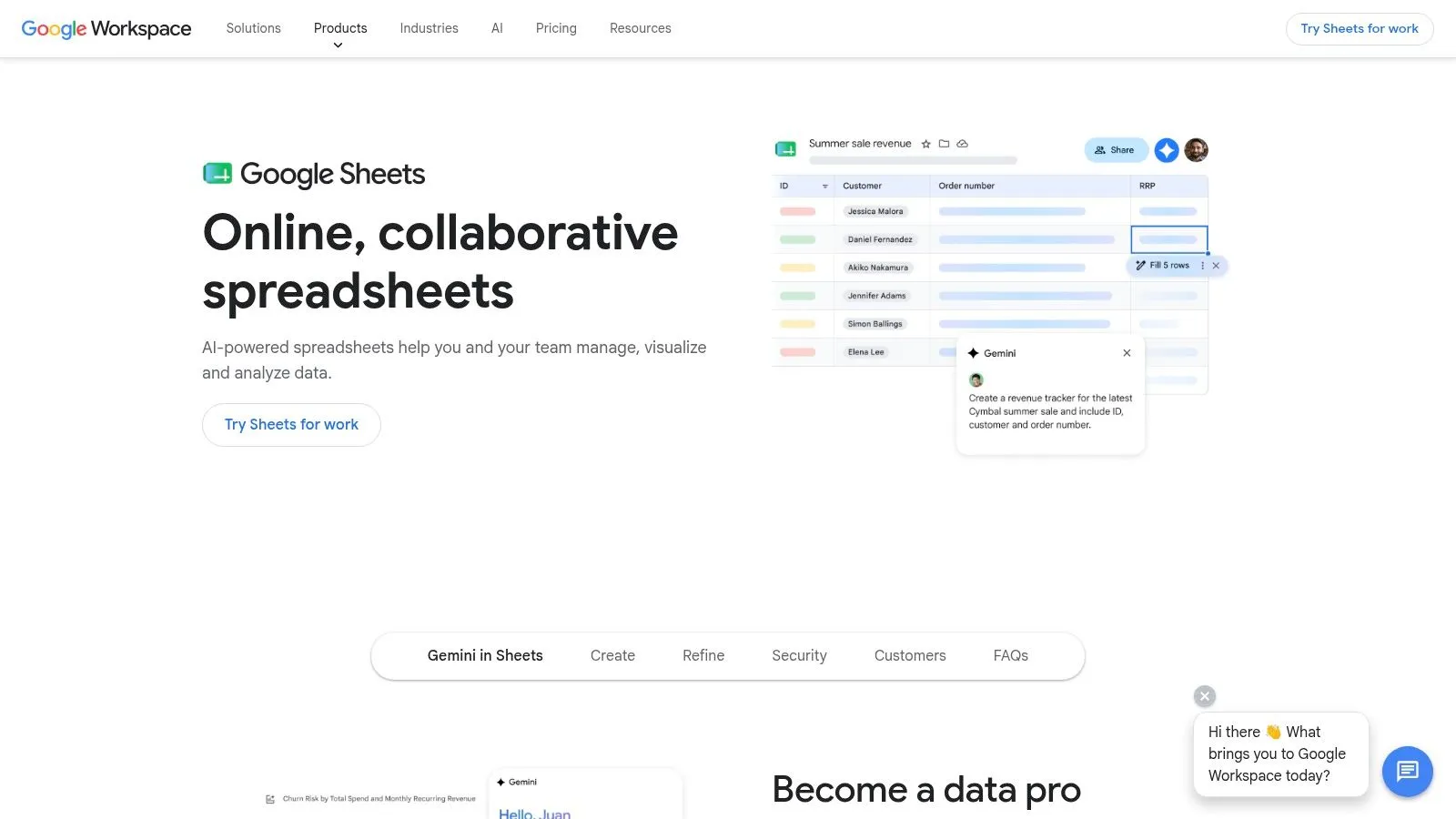
Gemini is the default choice for teams already living inside Google Workspace. If you want the least setup, the cleanest onboarding, and admin-managed access, start here.
The biggest strength is context. Gemini sits where you already work. You can ask for formula help, summaries, charts, categorization, and guided analysis without installing a stack of separate tools. Google also reports that Gemini in Google Sheets reached a 70.48% success rate on the public SpreadsheetBench benchmark in March 2026, which is the closest performance a spreadsheet AI has reached to human-expert analysis levels, according to SQ Magazine's Google Sheets statistics roundup.
Best for guided analysis and native workflows
Gemini is strongest when the task starts with a question, not a production pipeline. Ask something like “what's the trend in sales over the last 6 months?” and use the sidebar output as a first-pass analysis. It's also useful when a teammate broke a formula and needs a fast explanation or repair.
For hands-on training specifically focused on this workflow, the Gemini with Google Sheets course is a good next step.
What doesn't work as well is heavy row-by-row automation. Gemini is good at helping you think through the sheet. It's less effective when you need to transform large blocks of messy records at scale.
Use Gemini when you'd normally ask an analyst a question. Don't use it when you need an assembly line.
3. GPT for Sheets and Docs
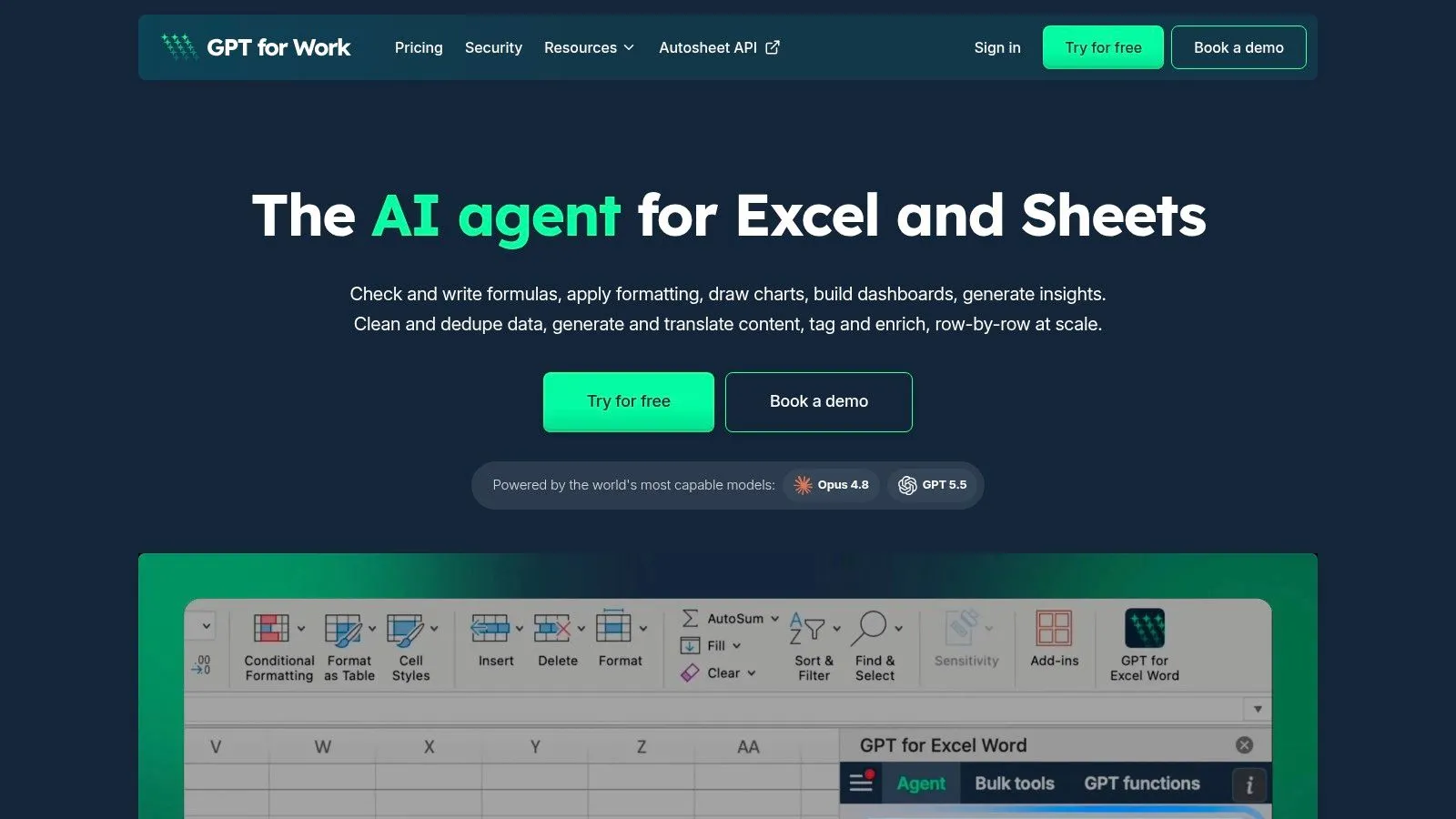
If Gemini is the on-sheet guide, GPT for Sheets and Docs is the workhorse. This is the tool I'd pick when the job is repetitive, row-based, and too large to handle manually.
The key distinction is bulk processing. GPT for Sheets can process up to 1,000 cells per minute and scale to datasets with up to 1 million rows in a single run, with support for jobs like cleanup, filling missing values, categorization, pivot building, and chart generation, as detailed in GPT for Work's comparison of AI spreadsheet tools. That matters because most real spreadsheet pain isn't a single smart answer. It's thousands of boring transformations.
Best for bulk automation across rows
The sidebar model works well here. You describe what you want, the agent reads the data, runs the analysis, and writes results back into cells. That's much closer to an operator than a chatbot.
This is also where a lot of teams make bad tool choices. GPT for Work's own comparison notes a common gap between interactive guidance and bulk automation. In practice, people paste prompts row by row when they should be using a bulk tool, and that workflow can be dramatically slower than using the right add-on for mass processing, as explained in GPT for Work's Gemini versus GPT for Sheets breakdown.
If you need prompt ideas before building a workflow, these ChatGPT prompts for Google Sheets are useful.
- Choose this for enrichment: Translation, classification, rewriting, web research, and structured content tasks across many rows.
- Choose this for messy data: The tool is especially strong when columns are inconsistent and need normalization before analysis.
- Skip it if you want zero planning: Usage-based tools work best when someone owns prompt design and cost discipline.
4. PromptLoop for Google Sheets
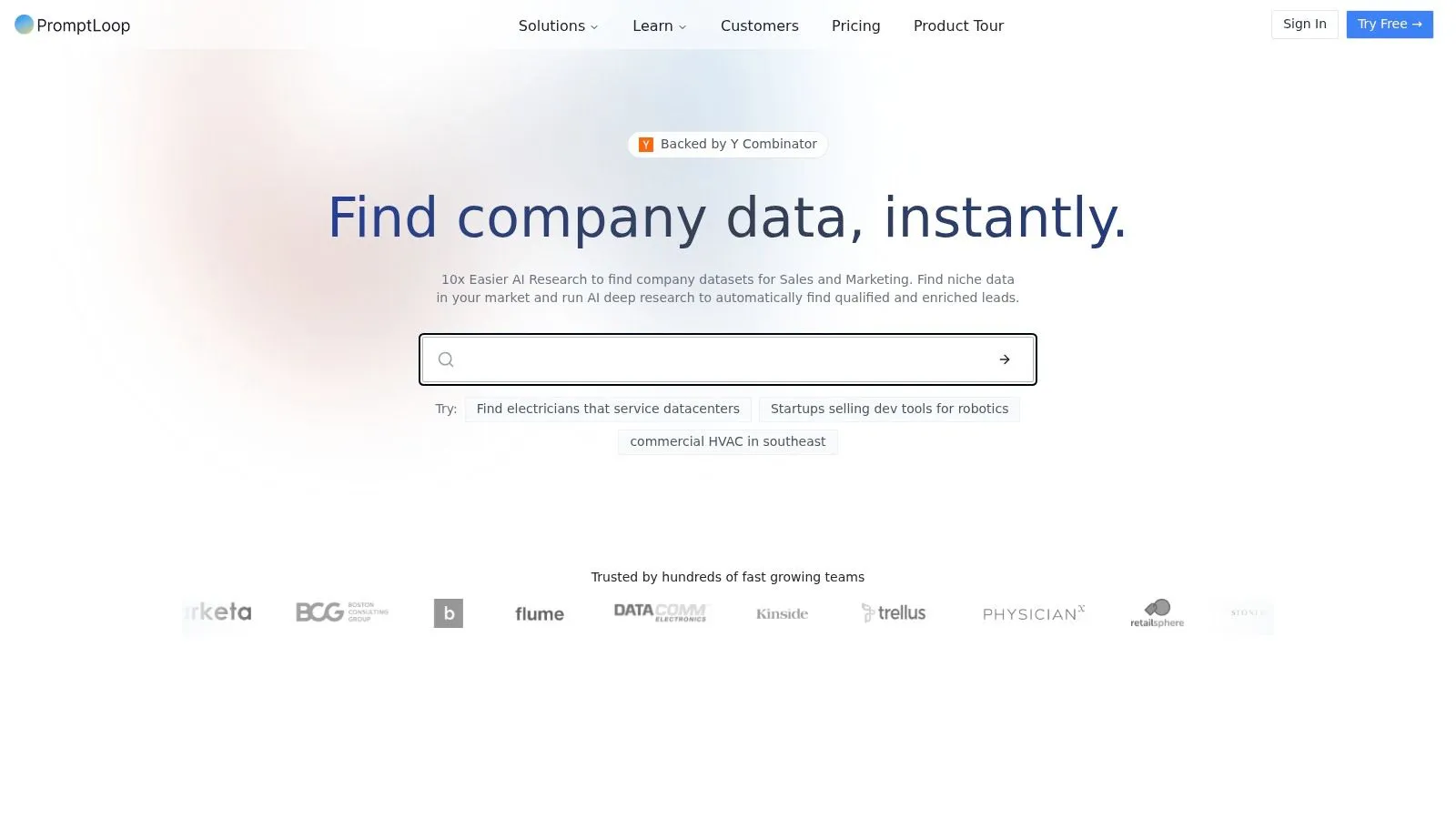
PromptLoop sits in a practical middle ground. It's built for teams that want row-level AI functions inside Sheets but don't want a full-blown data platform. Sales ops, lead research, categorization, and enrichment are the obvious fits.
What makes it useful is the spreadsheet-native feel. You can run LLM-style tasks per row or column, use templates, and build repeatable research or enrichment flows without leaving the sheet. For many teams, that's the right level of sophistication. More than Gemini, less overhead than a broader automation stack.
Best for enrichment and structured research workflows
PromptLoop works best when you already know the shape of the output you want. Think lead categorization, account research, short field generation, or structured extraction from text fields.
The trade-off is operational. Credit-based systems are easy to understand at first and annoying later if no one is watching usage. On high-volume monthly workflows, you need a habit for testing prompts on a small sample before you run the full sheet.
Good enrichment tools don't save you from bad sheet design. They punish it faster.
If your inputs are inconsistent, standardize the columns first. If your expected outputs aren't tightly defined, you'll get noisy results no matter how good the model is.
For direct access, use the PromptLoop website.
5. SheetAI
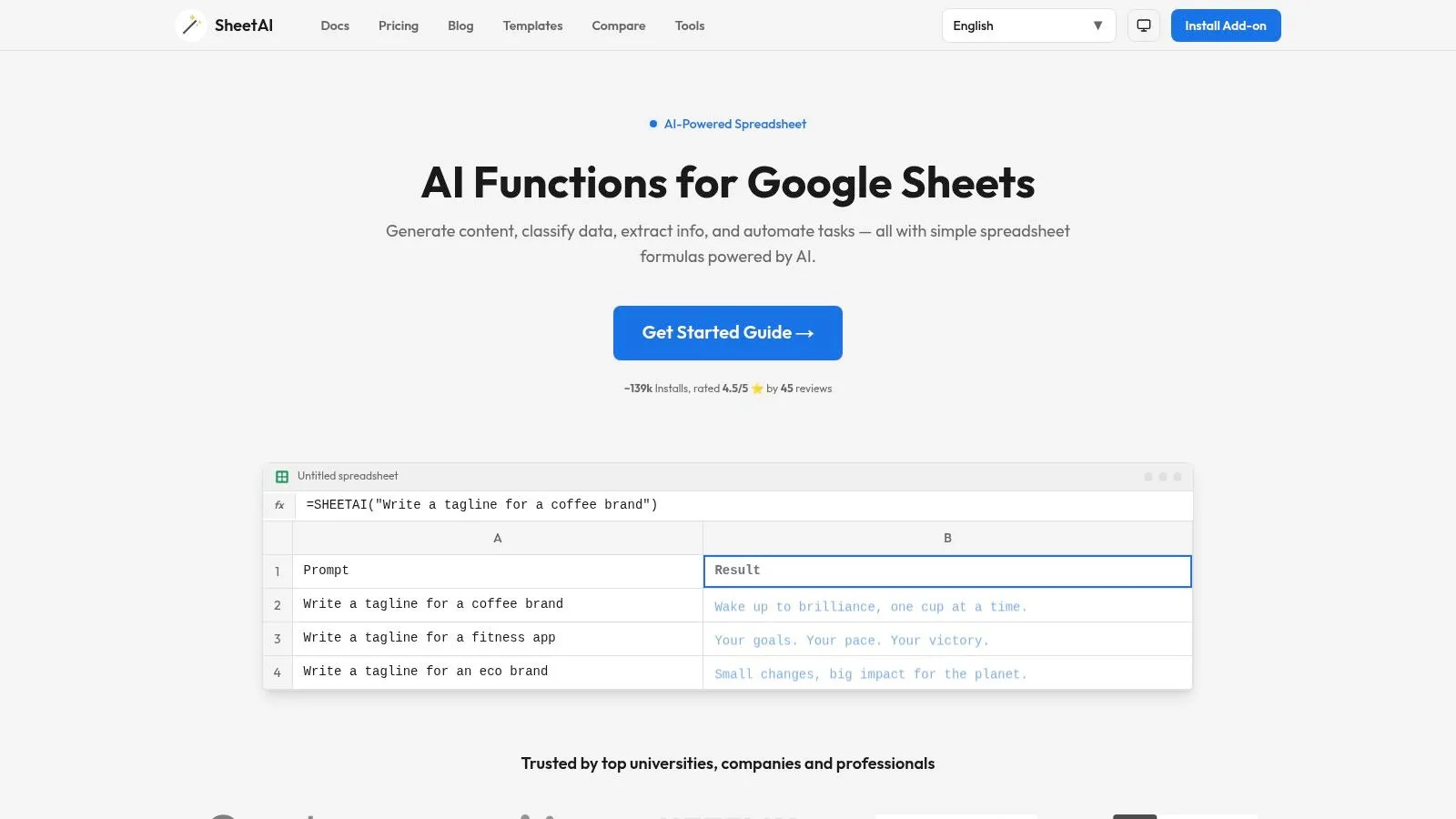
SheetAI is for people who want AI in Google Sheets without much friction. You install it, use simple functions, open the sidebar, and start writing plain-English prompts. For many solo operators and small teams, that's enough.
I like tools in this category when the work is lightweight but frequent. Rewriting product descriptions, summarizing notes, generating formulas, and classifying text are all good examples. SheetAI doesn't ask you to rethink your whole stack. It just gives you an easier way to perform common spreadsheet tasks.
Best for simple prompt-driven spreadsheet work
The formula-first approach helps non-technical users because it maps cleanly to how they already think about Sheets. If someone is comfortable using functions, AI functions feel like a natural extension rather than a new system.
There are still trade-offs. SheetAI is heavily oriented toward OpenAI-style workflows, so it won't appeal as much to users who want broad model choice or deeper governance controls. That's not necessarily a flaw. It just makes the tool better for speed than for enterprise complexity.
If you want a broader overview of where tools like this fit, this guide on AI for spreadsheets is worth reading.
- Use SheetAI for quick wins: Formula generation, short content, cleanup, summaries.
- Use something else for heavier governance: Larger organizations often need tighter admin control and model policy options.
- Use caching strategically: Repeated prompts on stable data are where these tools save the most time and cost.
You can explore it at the SheetAI website.
6. Flowshot AI for Google Sheets
Flowshot is one of the easier AI tools for Google Sheets to hand to a non-technical team and say, “try this.” The formula-based UX feels approachable, and the sidebar makes ad hoc prompting simple.
It's particularly useful for content-heavy spreadsheet work. Marketing teams can generate draft copy, transform text, complete missing values, and experiment with image generation without stitching together separate tools. That broadens the use cases beyond pure analysis.
Best for fast content and formula assistance
Flowshot works well when speed matters more than precision tuning. If the task is “help me draft, clean, complete, or transform this range,” it gets out of the way quickly.
The downside is control. Character-based limits can be less intuitive than task-based budgeting, especially for users who don't understand why one prompt consumes more than another. Advanced users may also want more say over models and routing than a vendor-optimized setup gives them.
Still, for mixed teams doing a bit of everything, that simplicity is the point. You can start with the Flowshot website.
7. Coefficient AI Sheets Assistant
A common Sheets failure looks like this: the formulas are fine, but the report is wrong because someone exported stale CRM data on Monday and presented it on Thursday. Coefficient is built for that problem.
In this guide's use-case framing, Coefficient belongs in the reporting and connected-data bucket. It fits teams that treat Google Sheets as an operating layer for revenue, marketing, support, or finance reporting, not just a place to clean a CSV once and move on.
Best for reporting workflows tied to live business systems
Coefficient stands out when the job is recurring. Pull data from tools like Salesforce, HubSpot, or Snowflake, refresh it on a schedule, keep the sheet current, and let stakeholders work from one shared reporting surface. That is a different workflow from prompt-first tools focused on text generation or ad hoc enrichment.
The AI layer is useful, but it is not the whole product. In practice, value comes from combining connectors, scheduled refreshes, charting, and collaboration with in-sheet assistance. Google's native =AI() capabilities also cover a lot of cell-level tasks now, including categorization, sentiment work, extraction, and text generation, so Coefficient often makes the most sense as the reporting system around that work rather than the sole AI interface.
A practical workflow looks like this: sync source data into Sheets, use formulas or native AI functions to classify or summarize fields, then publish the result as a recurring dashboard or review sheet. That setup works especially well for weekly pipeline reviews, campaign pacing reports, and KPI trackers that break when data collection stays manual.
- Best fit: Connected reporting, recurring refreshes, stakeholder dashboards, and collaborative KPI tracking.
- Less ideal: Standalone creative tasks or small one-off sheets with no external data source.
- Trade-off: The features that matter most for larger teams, especially admin controls and deeper connectors, usually sit in higher tiers.
You can review the platform at the Coefficient website.
8. Numerous.ai
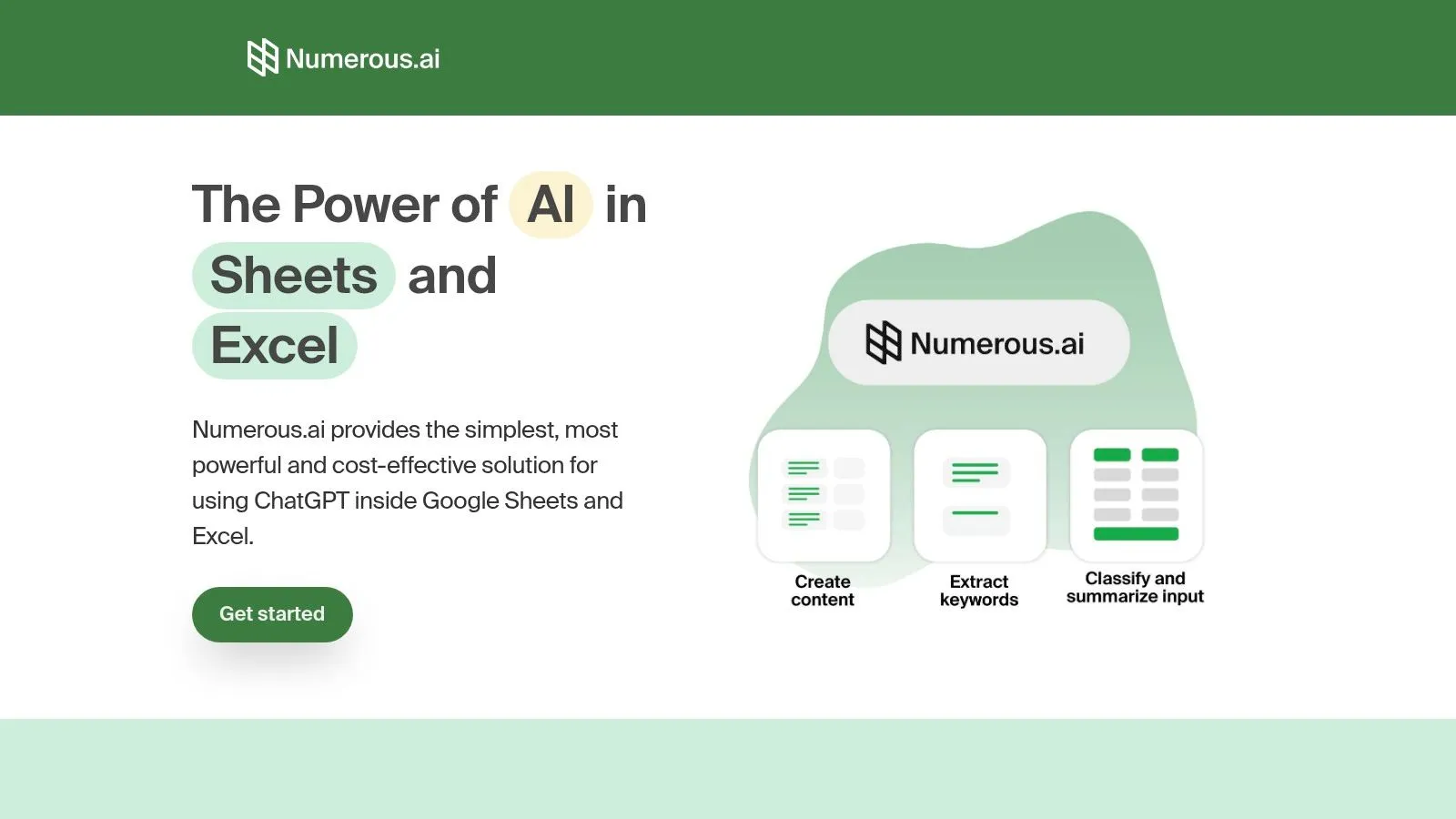
Numerous.ai is one of the simplest options in the category. If the goal is “give me an =AI() style workflow without setup headaches,” it delivers.
That simplicity makes it a strong choice for teams testing whether AI belongs in their sheet process at all. You don't need a separate model account to get started, and the cross-support for Sheets and Excel is useful when teams work across both.
Best for lightweight team adoption
Numerous.ai is good at prototyping practical uses. Categorize this list, rewrite those descriptions, summarize that free-text column, and see what sticks. For many organizations, that early experimentation phase matters more than advanced control.
The trade-off is that advanced users may outgrow it. When the vendor abstracts model selection and governance decisions, you gain ease of use and lose fine-grained control. That's often a fair exchange for general business users and a frustrating one for technical teams.
Start simple if adoption is your bottleneck. Start configurable if governance is your bottleneck.
For direct access, visit the Numerous.ai website.
9. Arcwise AI Copilot for Google Sheets

Arcwise is the tool I think about for inherited spreadsheets. You join a project, open a sheet with undocumented tabs, mystery formulas, and naming conventions nobody can explain. Arcwise is built for that kind of context-heavy analysis.
Because it's sheet-aware, it helps with explanation as much as execution. That makes it useful for onboarding, audits, spreadsheet cleanup, and “what is this file doing?” moments that generic AI tools often handle poorly.
Best for understanding messy inherited spreadsheets
Arcwise works best when context is the problem. It can explain sheet structure, help write formulas, answer questions about the existing data, and support cleaning without forcing an export to another environment.
That said, extension-based deployment can be a blocker in some organizations. Some IT teams are fine with Chrome extensions. Others aren't. Pricing also isn't always as transparent as product-led buyers would like, so procurement may take longer than with self-serve add-ons.
Still, the concept is strong. Many teams don't need another generator. They need a copilot that can read the room. You can check the product at the Arcwise website.
10. MonkeyLearn Text Analysis for Google Sheets
MonkeyLearn belongs in a different bucket from the general-purpose AI add-ons. It's not trying to be your all-purpose spreadsheet assistant. It's designed for text analysis tasks like sentiment, topic classification, and keyword extraction.
That narrower focus is a strength when your spreadsheet contains large volumes of support tickets, survey responses, review text, or social feedback. General LLM tools can do this work, but purpose-built NLP platforms usually give you a cleaner path when you need repeatability and taxonomies that reflect your business.
Best for purpose-built NLP inside Sheets
Use MonkeyLearn when labels matter and you want consistency over improvisation. Customer support, CX, research, and social listening teams are the natural fit.
The trade-off is cost and scope. You'll likely need a separate MonkeyLearn account and platform plan, and it may be more than you need if your only requirement is occasional summarization or lightweight sentiment tagging. But if text analysis is core to the workflow, the product focus helps.
To put it practically:
- Pick MonkeyLearn for repeatable text operations: Sentiment, topic grouping, keyword extraction, custom classifiers.
- Pick a general AI add-on for broader tasks: Formula generation, content drafting, mixed spreadsheet assistance.
- Pick both only if the workflow justifies it: Specialized NLP plus general spreadsheet AI can work well, but only when each tool has a clear job.
You can explore the platform on the MonkeyLearn website.
Top 10 AI Tools for Google Sheets, Feature Comparison
| Product | Core features | 👥 Target audience | ✨ Unique selling point(s) | 💰 Pricing & value | ★ Quality/UX |
|---|---|---|---|---|---|
| Courses - Build Practical Google Sheets Automation Using Gemini | Gemini‑powered automations, 10‑min step‑by‑step lessons, copy‑paste prompts & templates | Marketers, analysts, managers | ✨ Hands‑on micro‑course + onboarding, templates & private community 🏆 | 💰 Part of AI Academy subscription (Monthly/Annual/Lifetime; free trial) | ★★★★☆ 7‑day support, weekly updates |
| Gemini in Google Sheets (Google Workspace) | "Fill with Gemini", formula help, summaries, chart generation, Workspace integration | Workspace orgs, admins, general users | ✨ Native, zero‑setup AI governed by Workspace admin controls | 💰 Included/varies by Workspace plan | ★★★★ Frequent updates; plan limits apply |
| GPT for Sheets and Docs (Talarian) | Natural‑language sidebar, bulk ops, BYO‑key, enterprise security & pooled credits | Marketing, ops, data teams | ✨🏆 Multi‑model support + enterprise governance & pay‑as‑you‑go credits | 💰 Usage‑based (pooled credits), good for scale | ★★★★ Robust for enterprise workflows |
| PromptLoop for Google Sheets | =LLM functions per row, templates, parallel processing for large datasets | Sales ops, marketing, data cleanup teams | ✨ Designed for high‑volume row operations & templates | 💰 Credit‑based tiers (clear volume pricing) | ★★★★ Scales for large datasets |
| SheetAI | =SHEETAI functions, sidebar prompts, cached results, BYO OpenAI | Non‑technical users, small teams | ✨ Easy formula generation, team/domain licenses | 💰 Straightforward bundles; paid plans for unlimited formulas | ★★★★ User‑friendly for quick tasks |
| Flowshot AI for Google Sheets | Formula UX (=AI/=IMAGINE), sidebar, text & image gen, large free tier | Content, marketing, non‑technical teams | ✨ Generous free tier (100k chars/month) + formula‑first UX | 💰 Free tier + tiered paid plans (char limits) | ★★★★ Low friction for creatives |
| Coefficient AI Sheets Assistant | On‑sheet AI copilot, live connectors (Salesforce/HubSpot/Snowflake), scheduled refresh | BI/reporting teams, analysts, ops | ✨🏆 Strong connector & automation stack for dashboards | 💰 Free plan + Pro trial; per‑user pricing for full connectors | ★★★★ Enterprise reporting focus |
| Numerous.ai | Simple =AI() functions, long‑term caching, no API key required | Rapid prototyping, non‑technical teams | ✨ Fast setup across Sheets & Excel; team plans & caching | 💰 Plan quotas; vendor‑managed model usage | ★★★★ Easy to adopt (limited model control) |
| Arcwise AI Copilot for Google Sheets | Sheet‑aware AI analyst sidebar, explains sheets, cleans data, writes formulas | Auditors, analysts, onboarding teams | ✨ Deep sheet context awareness; complements other add‑ons | 💰 Vendor pricing (contact required) | ★★★★ Helpful for complex sheets |
| MonkeyLearn Text Analysis for Google Sheets | Prebuilt sentiment/topic models, point‑and‑click training, custom classifiers | Support, CX, research, social listening teams | ✨🏆 Purpose‑built text analytics with custom models | 💰 Separate MonkeyLearn plans; mid‑to‑enterprise pricing | ★★★★ Proven NLP for text analytics |
From Manual Tasks to Intelligent Workflows
The biggest mistake people make with AI tools for Google Sheets is treating them like interchangeable assistants. They're not. Some are best for asking questions about your data. Some are built for bulk row operations. Some are really reporting platforms with AI layered on top. Others are specialized text-analysis tools that happen to plug into Sheets.
That's why the best choice starts with the job.
If your workday is full of one-off analysis, formula debugging, and quick charting, Gemini is the obvious first stop. If your problem is repetitive transformation across lots of rows, a bulk-oriented tool like GPT for Sheets and Docs makes more sense. If your spreadsheet is a reporting layer connected to CRM or warehouse data, Coefficient is closer to what you need. If your team lives in survey responses, support conversations, or reviews, MonkeyLearn is the specialist.
In practice, the strongest workflow is often a combination. Use native Gemini for exploration and formula help. Use a bulk add-on for large-scale cleanup or enrichment. Use a reporting platform when the sheet needs live business data. That layered approach is what turns AI from a gimmick into infrastructure.
The other lesson is that access alone doesn't create advantage. A lot of teams now have AI inside Sheets, but they're still using it in the slowest possible way. They ask one prompt, patch one column, copy one result, then repeat. The time savings only show up when prompts are reusable, outputs are structured, and the workflow is designed for repetition.
That's why structured learning matters. A practical course can save more time than another plugin because it teaches how to choose the right tool, write prompts that survive handoff, and build automations coworkers can maintain. If you want to go deeper on process design beyond Sheets itself, these CleanMyList tips for Google Forms are also relevant when form inputs feed your spreadsheet workflows.
The right move is simple: Pick one pain point. Cleaning imports, writing formulas, categorizing feedback, refreshing reports, or enriching rows. Then pick one tool from this list that solves that pain cleanly. Once that workflow works, expand from there. That's how spreadsheets stop being static files and start acting like intelligent workspaces.
If you want the fastest path from experimenting with AI in Sheets to using it confidently at work, AI Academy is a strong place to start. It's built for non-technical professionals, and the lessons focus on short, practical workflows you can apply right away across Gemini, ChatGPT, Claude, automation tools, and spreadsheet use cases that come up in real jobs.