Your inbox probably doesn't look broken. It looks busy. There's a difference.
Most professionals don't lose control of email because they lack discipline. They lose control because the inbox has become a catch-all for requests, approvals, updates, reminders, files, and conversations that really belong in several different systems. The result is constant context switching. You scan, star, snooze, reply, forget, search, and repeat.
That's where AI for email management helps, if you use it as part of a workflow instead of treating it like a magic button. The best results usually come from letting AI handle low-risk sorting, summarizing, and drafting while you keep control over decisions, tone, and sensitive actions. That's the difference between an inbox that feels lighter and one that creates new problems.
Beyond Inbox Zero Reclaiming Your Focus with AI
Inbox Zero sounds clean, but many users don't need a perfectly empty inbox. They need a system that makes the next right action obvious. That's a better target because email overload is usually a focus problem, not a storage problem.
AI has become practical enough to help with that shift. According to a Forbes Advisory Survey, 61% of companies globally now use artificial intelligence specifically to optimize their email communications, a sign that AI has moved from experimentation into normal operations for many teams, as summarized by Sintra's review of AI email assistant adoption. That matters because it changes the question from “Should we try AI?” to “How do we use it without making the inbox messier?”
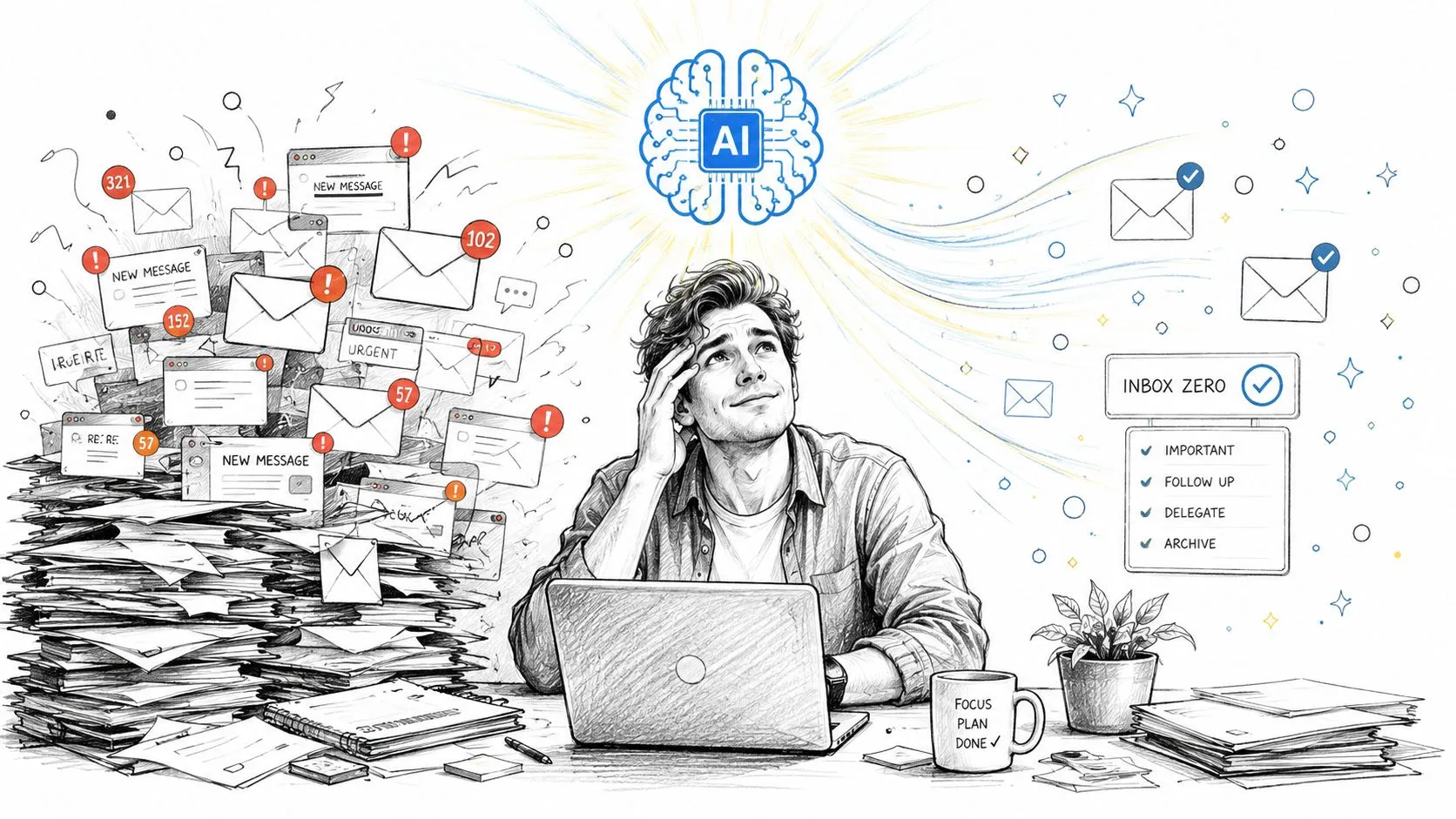
The strongest use of AI for email management isn't auto-replying to everything. It's reducing friction in the places where people waste attention. Sorting by intent. Pulling action items from long threads. Flagging what needs a same-day answer. Drafting a first pass that you can review in seconds. If you're exploring broader AI-powered email automation, that's the mindset worth keeping. Start with workload relief, not full delegation.
Practical rule: If AI removes clicks but increases uncertainty, it's not saving time. It's just moving the effort somewhere harder to see.
A good inbox system does three things well. It separates signal from noise, shortens the time between reading and acting, and limits the amount of email that stays in your head after you close the tab. AI can help with all three, but only when the workflow is clear first.
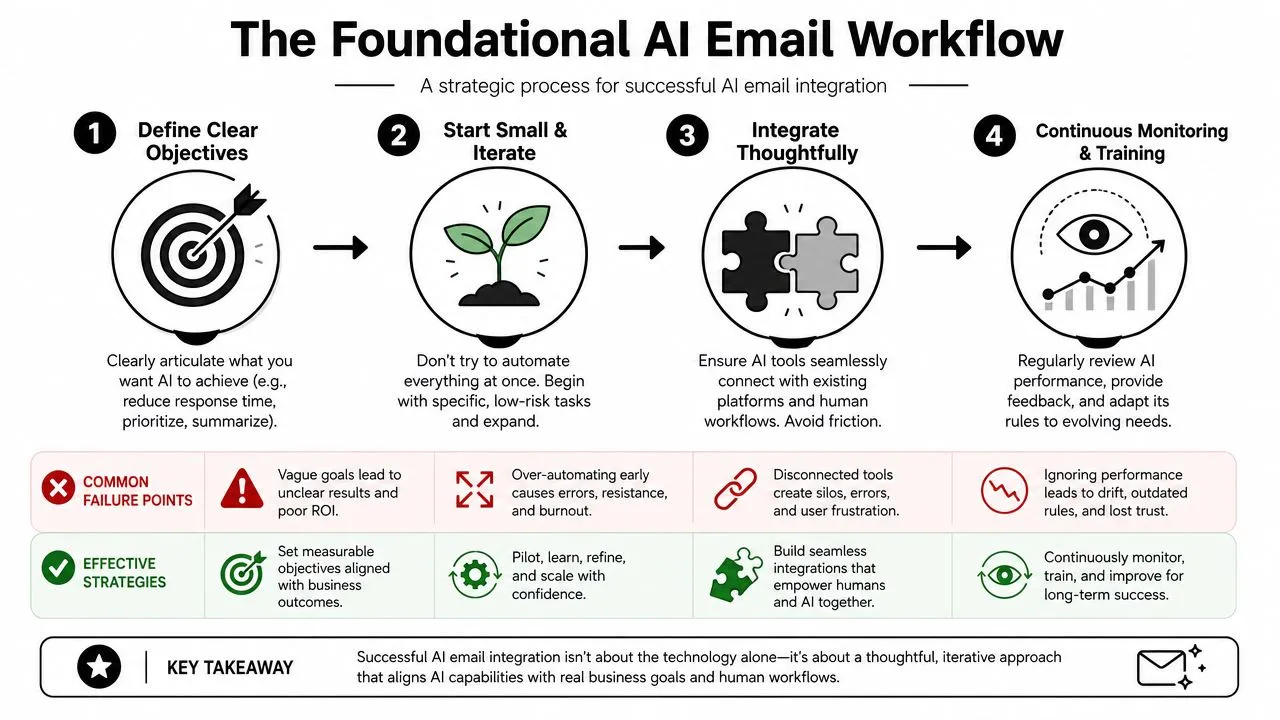
The Foundational AI Email Workflow
The fastest way to fail with AI in email is to automate random tasks without deciding how email should flow through your day. Teams often buy a tool before they define what “better” means. Then they end up with faster clutter.
Why most teams stall
One of the clearest warnings here is that 87% of marketing teams use AI for email, but only 6% qualify as high performers, with the gap driven more by workflow integration than tool choice, according to the referenced YouTube discussion on AI email workflows. That matches what happens in practice. Teams add AI to drafting, summarizing, and inbox cleanup, but they never define approval rules, ownership, or exceptions.
You can avoid that trap by treating email like an operating system with stages. Not every message deserves the same attention. Not every action should happen inside the inbox.
Later, when you want to expand beyond email into broader automation, it helps to understand how agentic AI workflows fit into human review, triggers, and handoffs across tools.
A simple operating model
Use this three-stage model.
-
Triage and Prioritize AI tags and sorts incoming messages by urgency, topic, and likely next action, with labels, summaries, and priority markers performing most of the heavy lifting.
-
Process and Respond
AI drafts replies, summarizes threads, extracts tasks, and helps you answer faster. You still approve anything nuanced, sensitive, or relationship-critical. -
Automate and Archive
Routine messages trigger actions outside email. A receipt creates an expense task. A client request becomes a project ticket. A completed thread gets archived once the next step is assigned elsewhere.
Later in the section, the workflow expands into platform-specific setups and cross-app routing. For now, keep one idea in mind. AI should reduce decision fatigue before it tries to replace decision-making.
A simple way to start is to write down three recurring inbox problems.
- Slow first response: You read messages, postpone them, then re-read them later.
- Buried priorities: Important requests sit beside newsletters, notifications, and low-value threads.
- Manual forwarding: You spend time sending the same types of emails to the same people or systems.
Most teams don't need more email features. They need fewer moments where a human has to decide what a message means.
Place each problem into the three-stage model. That gives you a useful sequence. First classify. Then draft. Then route. In that order, AI for email management becomes manageable for non-technical teams.
Here's a short walkthrough that reinforces the workflow before you build your own setup:
Automating Triage with Smart Rules and Labels
Most inboxes are sorted by time because that's the default. Time is rarely the best way to organize work. A better system sorts by intent.
Build categories around action not sender
If you only create rules for specific senders, the inbox stays shallow but not smart. The more useful approach is to group emails by what they require.
A few high-value examples:
- Urgent reply today for phrases like “action required,” “approved by,” “deadline,” or “can you confirm”
- Finance action for invoices, purchase orders, receipts, payment notices, and contract attachments
- Meeting follow-up for threads that mention next steps, agenda, notes, or scheduling changes
- Read later for newsletters, digests, routine product updates, and internal announcements
- Waiting on others for emails where you've already replied and need to track the follow-up
This turns your inbox into a work queue instead of a scroll.
For support or operations teams, topic-based classification matters even more. The workflow described in the verified material emphasizes training or fine-tuning on historical ticket data, then adjusting tagging logic based on feedback and outcomes like resolution time and first response time. Even if you're not running a formal model, the principle holds. Base your categories on real historical patterns, not guesses.
How to set this up in Gmail and Outlook
In Gmail, start with filters plus labels.
- Search for a pattern such as
("invoice" OR "payment due" OR "receipt"). - Create a filter from that search.
- Apply a label like Finance-Action.
- Decide whether to star it, mark it important, or skip the inbox if it belongs in reference only.
- Review the label after a few days and tighten the keyword set.
In Outlook, use Rules for simpler routing and Categories for visual grouping. If you have access to Microsoft Copilot features or other AI helpers, use them to summarize the contents of a message before deciding whether the rule logic is right. The core setup still matters more than the assistant layer.
A practical rule set should include both positive and negative logic. For example, emails that mention “invoice” may belong in Finance-Action, unless they also include “newsletter” or come from a no-reply address used for bulk updates.
If a rule catches too much, people stop trusting the label. If it catches too little, they stop checking it.
Starter label system that works
Keep the system short enough to remember. Teams generally find more success with a small group of labels they use consistently than with a giant taxonomy nobody maintains.
| Label | Use it for |
|---|---|
| Urgent-Reply Today | Requests that need a human answer quickly |
| Deep Work Later | Emails that require thought, review, or research |
| Finance-Action | Invoices, receipts, approvals, payment-related threads |
| Meeting Follow-Up | Notes, decisions, tasks after calls |
| Read-Later | Low-priority updates and non-urgent reading |
| Waiting-On | Threads where the next move belongs to someone else |
Two habits make this system hold up over time:
- Review false positives weekly: Move wrongly tagged messages and adjust the matching terms.
- Protect executive and sensitive senders: Keep legal, HR, payroll, and leadership communication under stricter rules.
Once triage is stable, the next gain comes from shortening the writing work itself.
Drafting and Summarizing Emails in Seconds
Writing is where people feel the benefit of AI first. Not because AI is always better at phrasing, but because a rough draft is easier to edit than a blank screen is to start.
Where AI writing actually saves time
The easiest wins come from repetitive formats.
You open a thread with too many replies and ask AI for a concise summary with three outputs: what happened, what's unresolved, and what you need to answer. Or you paste a customer email and ask for a calm reply that explains a delay without sounding defensive. Or you take a loose idea and ask for two versions: one direct, one warmer.
These are practical uses because they reduce setup time. They don't remove your judgment.
When personalization matters, context matters more than clever prompting. The verified data notes that successful implementation of AI-powered personalization generates a 41% revenue increase alongside a 13.44% higher click-through rate, but only when the data foundation is clean and authentication practices are in place, as summarized in this Gmelius overview of AI email assistants. The lesson for daily work is simple. Generic copy gets ignored. Relevant copy gets answered.
If your drafts still sound stiff, this guide to humanizing AI emails is a useful reference for improving tone without making messages feel over-edited.
For more copy-and-paste starting points inside Gmail workflows, this collection of ChatGPT prompts for Gmail is a practical companion.
AI Prompts for Common Email Tasks
Use prompts that specify role, tone, length, and context. That's what cuts revision time.
| Task | Sample Prompt |
|---|---|
| Summarize a long thread | “Summarize this email thread in bullet points. Include key decisions, open questions, deadlines mentioned, and the one action I need to take next.” |
| Draft a polite decline | “Write a polite but firm reply declining this request. Keep it professional, brief, and appreciative. Don't over-explain.” |
| Create a follow-up email | “Draft a concise follow-up to this prospect. Acknowledge the previous conversation, restate the main value clearly, and end with one simple next step.” |
| Rewrite for clarity | “Rewrite this email so it's easier to scan. Keep the meaning, shorten long sentences, and use a calm professional tone.” |
| Personalize outreach | “Write a short networking email based on this context. Mention the shared connection or topic naturally, avoid hype, and end with a low-pressure ask.” |
| Extract action items | “Read this email and list the action items, owners if stated, deadlines if stated, and any dependencies or missing information.” |
| Turn notes into email | “Convert these rough notes into a clear email. Use a confident but friendly tone and make the next step obvious.” |
| Reply to a complaint | “Draft a response that acknowledges the issue, explains what happens next, and avoids defensive language. Keep the tone calm and accountable.” |
Personalization without sounding robotic
Strong prompts include source material that only you have. That could be the previous conversation, the client's actual concern, the meeting notes, or the internal decision behind the reply. Without that context, the output tends to sound polished but hollow.
A few prompt upgrades make a visible difference:
- Add audience context: “The recipient is a busy finance manager.”
- Define the relationship: “We've worked together before, so keep this familiar, not formal.”
- Set boundaries: “Don't promise a date we haven't confirmed.”
- Ask for options: “Give me two versions, one concise and one more relationship-focused.”
Review lens: Before sending an AI draft, check facts, tone, and implied commitments. Those are the three places weak drafts create real work later.
Use AI to get to version one faster. Keep version final in human hands.
Building Automated Routing and Follow-Up Systems
At some point, the inbox shouldn't be the place where work lives. It should be the place where work gets recognized and sent where it belongs.
Move work out of the inbox
Zapier, Make, native Outlook automations, Gmail add-ons, Asana, Trello, Slack, Notion, HubSpot, and similar tools become useful. The AI part identifies intent or extracts details. The automation part moves those details into the right system.
That changes the role of email. Instead of being a task list, archive, reminder system, and collaboration layer all at once, it becomes an intake channel.
Good routing candidates usually share three traits:
- They repeat often: invoices, meeting requests, support intake, approvals, lead replies
- They follow a stable pattern: same attachment types, recurring keywords, common senders
- They belong elsewhere: project tools, CRMs, finance workflows, team chat
A practical routing example
Say your finance team receives invoice emails from multiple vendors.
A practical automation looks like this:
- An email arrives with an invoice attachment.
- AI or rule logic checks for likely finance intent using subject line, body text, and attachment clues.
- The workflow creates a task in Asana with the vendor name and due context pulled from the message.
- The task is assigned to the finance manager.
- A notice posts to a dedicated Slack channel so the team can see that the invoice entered the queue.
- The original email is labeled Finance-Action and archived or moved from the main inbox.
Nobody has to forward the message manually. Nobody has to copy details into the task. The inbox stops being the only place where the request exists.
You can build the same pattern for sales follow-ups, onboarding requests, or support issues. For example, a customer email that contains a product issue can create a ticket in your help desk or project tool, then notify the owner in chat.
Rules for stable automation
The more moving parts you add, the more important boundaries become.
Use these operating rules:
- Start with low-risk actions: routing, tagging, task creation, and notifications are safer than auto-sending replies.
- Require review for exceptions: if the email is vague, contains sensitive data, or doesn't match confidently, send it to a review label instead of forcing automation.
- Keep the destination singular: one trigger should create one clear record in one main system, not duplicate work across five apps.
- Audit failed runs: if Zapier or Make misses a step, check whether the problem was bad parsing, inconsistent labels, or an unclear trigger.
- Archive only after handoff: don't remove messages from sight until the downstream task or ticket exists.
Routing should eliminate manual forwarding. It shouldn't hide work from the person still accountable for it.
When these flows are set up well, email becomes much less sticky. Messages arrive, get classified, create the right next step, and leave the inbox without becoming mental clutter.
Avoiding the Human Oversight Trap with Safe AI Habits
The biggest mistake in AI for email management isn't technical. It's assuming that if AI can perform an action, it should perform it without supervision.
That's risky because the inbox contains more than ordinary communication. It often holds contracts, billing details, personal information, private performance conversations, hiring notes, customer complaints, and internal strategy. The line between low-risk sorting and high-risk action matters.
Where automation should stop
The strongest warning in the verified data is this: 85% of AI email tools fail to distinguish between low-risk sorting and high-risk actions like sending or deleting sensitive data without explicit human confirmation, as discussed in Forbes on how to use AI agents for emails.
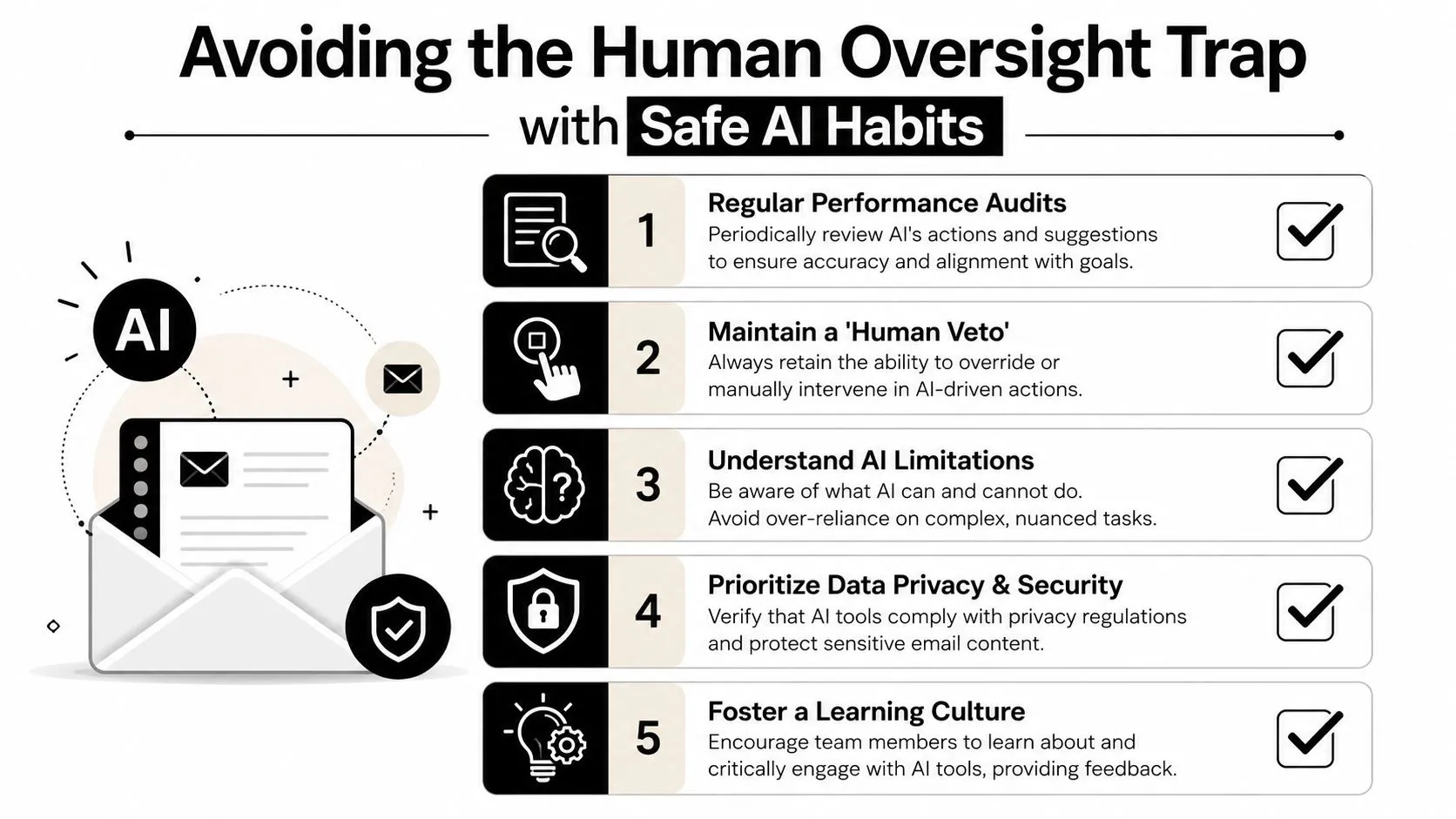
That's why the safest model is simple:
- Let AI classify
- Let AI summarize
- Let AI draft
- Let humans approve
- Let sensitive actions require an explicit check
If you want a broader framework for responsible use across tools and teams, these AI best practices are worth applying alongside email-specific rules.
A safe operating checklist
Before you connect any AI assistant to a live inbox, audit what's already in there. If the mailbox is full of mixed personal, legal, HR, executive, and financial communication, don't hand broad access to an automation layer and hope the defaults are sensible.
Use this checklist instead:
- Audit sensitive categories first: identify legal, HR, payroll, executive, and customer-confidential threads before enabling broad automation.
- Create exclusion rules: keep sensitive folders, labels, or sender groups out of automatic drafting, forwarding, deleting, or archiving.
- Test on historical emails: use a sample of past messages to see how the system classifies, summarizes, and routes before you trust it in production.
- Require human review on high-stakes drafts: payment issues, policy decisions, complaints, and anything involving personal data should always be checked.
- Watch for learned bad habits: if your inbox is disorganized, AI can copy that disorder at speed.
- Retain a human veto: anyone using the system should be able to stop, edit, or override AI suggestions quickly.
Safe automation feels slightly conservative at first. That's better than discovering later that a tool confidently moved, sent, or erased something it never should have touched.
Responsible AI use isn't the boring part of inbox automation. It's the part that makes the rest sustainable. Teams that skip oversight usually end up rolling back automations they could've kept if they had added clear review rules from the start.
If you want practical help applying these ideas beyond email, AI Academy is a strong next step. It's built for working professionals who want short, actionable lessons on ChatGPT, Claude, Midjourney, Perplexity, automation tools, and real on-the-job workflows. The tutorials are designed for non-technical roles, so you can go from “I know the basics” to building useful AI systems for reporting, writing, research, and operations without sitting through a bloated course.